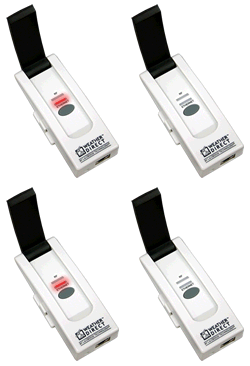
 Red (Ethernet) light blinks in sets of 2 within 30 seconds of being plugged in Red (Ethernet) light blinks in sets of 2 within 30 seconds of being plugged in
This means the Gateway is not getting an IP address from your Router. Items to Check:
- Do you have a Router and a Modem? (Be sure it does not say Switch or Hub.)
- Ensure DHCP is enabled on the Router and that only 1 device is serving out DHCP (see your router manual.)
- Can you access the Internet from your computer?
- Try a different Ethernet cable (standard Cat5 cable).
- Is your Computer plugged into the same router as the Gateway?
- Try a complete reboot of router, modem & PC to be sure everything clears.
Power Cycle the Gateway
- Unplug the a/c cord from the gateway for 10 seconds.
- Do not touch the gray gateway button.
- Plug the a/c cord into the gateway.
If you still cannot register your gateway, it may need a factory reset.
Reminder: If you have previously registered the gateway, you must delete any associated devices and the gateway from your Weather Direct account before the reset.
Gateway Factory Reset (after delete from website)
- Unplug the a/c power for 10 seconds. Press and Hold the gray button on the gateway before plugging the a/c power in again.
- Continue to hold the gray button for 30 seconds after inserting the a/c power cord.
- The Red Ethernet light will come on after about 10 seconds (continue holding), then go off for about 10 seconds, then come back on again.
- When the second red light appears, you can release the gray button. (We are not concerned about the green RF data light at this time.)
Note: Within 30 seconds the Red Ethernet light should flash in sets of 4 blinks, pause, 4 blinks pause, etc.
If it takes longer then 30 seconds to get to 4 blinks, you probably have a false positive reading, are not connecting and cannot register. The gateway will go to 4 blinks (with a default IP address) if given enough time.
Return to the Factory Reset section above. Count the lights again and if the steps failed, continue.
Set a Gateway Static IP
Some users have resolved 2 blinks by setting a static IP on the gateway. (Users on non-windows systems need to find a PC for this solution - changes will stay unless you factory reset the gateway):
- Download the Gateway Advanced Setup software
- Run the Gateway_Advanced_Setup.exe file. It should find the gateway and the Gateway Advanced Setup box should be full of numbers.
- If the box is all 0’s you will need to temporarily disable your firewalls to view the gateway. NOTE: This software runs only on Windows XP/SP3, Vista/SP2 or Windows 7/SP1.
- Look at the Serial number (grayed out) and confirm it is the same number as on the back of your gateway.
- Find the Actual IP (grayed out) and type that address into a browser address bar (Ex: 192.168.18.250).
- A blue screen should appear with statistics of the gateway.
- Write down what the Data Server IP is.
- Write down what the Last Contact is. If it is anything other than “None”, it has contacted our server.
Those with technical skill may wish to consult our Advanced Router Configuration guide.
If your resolution attempts above all fail, or the Data Server IP is blank, please contact Technical support and include:
- Make and model of your Router
- Make and model of your Modem
- Your Internet Service provider
- Weather Direct® User Name on the website
- Gateway Serial number (8-digits)
- Data Server IP address
- Your complete contact information
|